Media Library
The Media Library allows you to upload files that can be accessed when creating custom pages.
The Media Library is located in the Page Editor. Create or edit a page, to access the Page Editor.
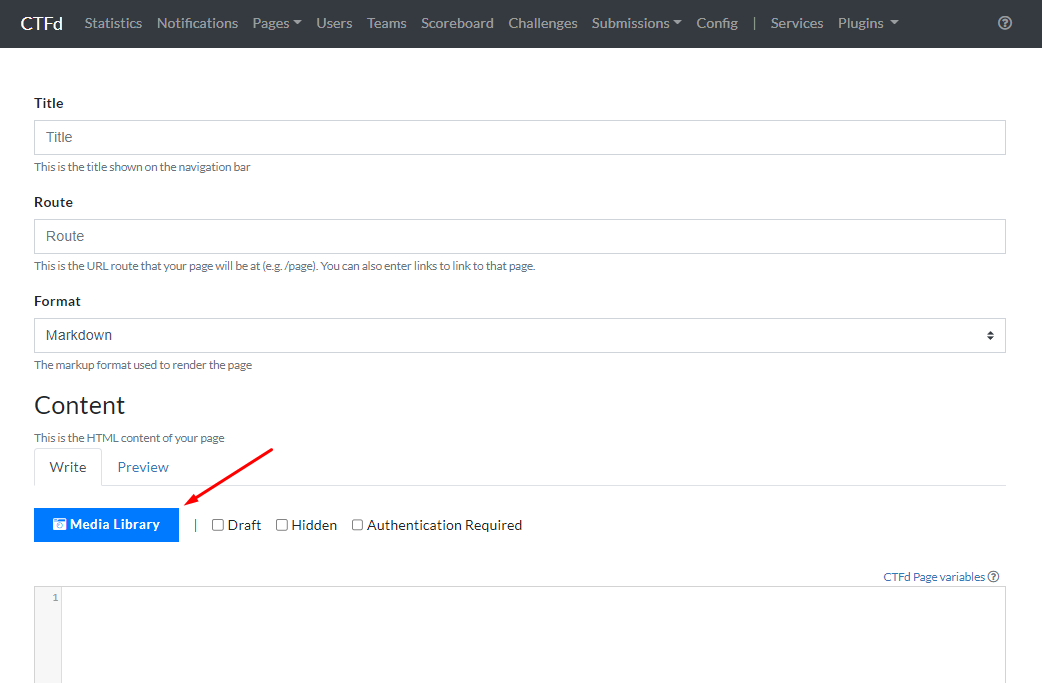
The Media Library Interface
All files uploaded through the Media Library are shared with other pages.
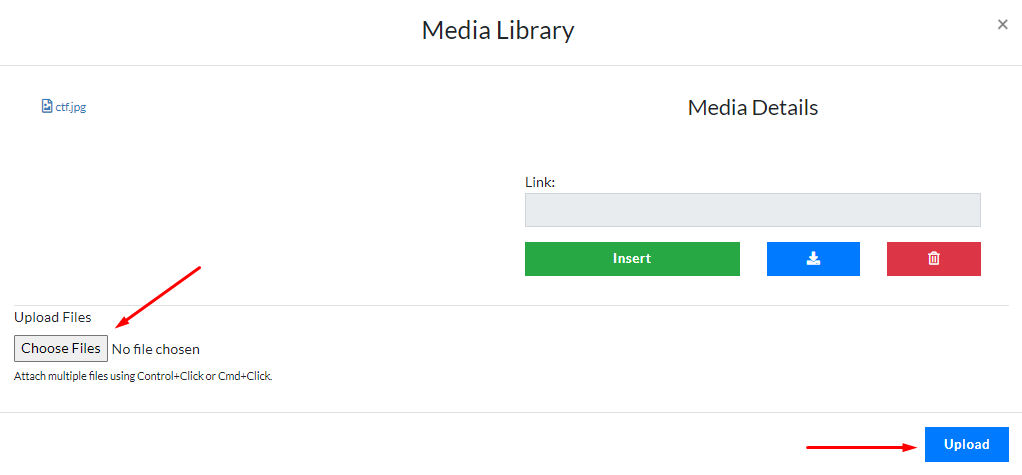
Uploading files
Upload files by clicking on Choose Files. Once you have selected a file to upload, click on Upload.
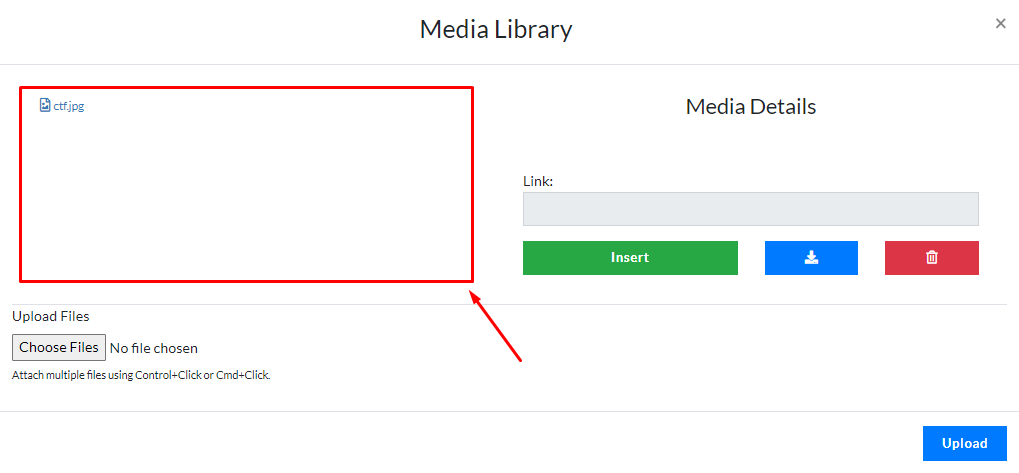
Uploaded Files
This section contains all the links for uploaded files.
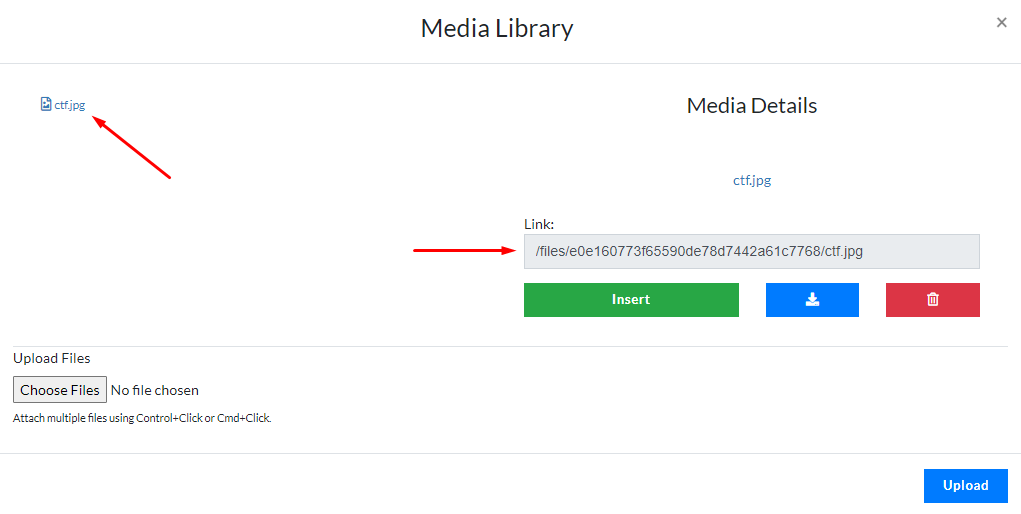
Linking to Uploaded Files
Click on any uploaded file in the Uploaded Files section to generate the file's URL.
Inserting File URLs
You can use the generated file path to point to your uploaded files when customizing pages in the Page Editor.
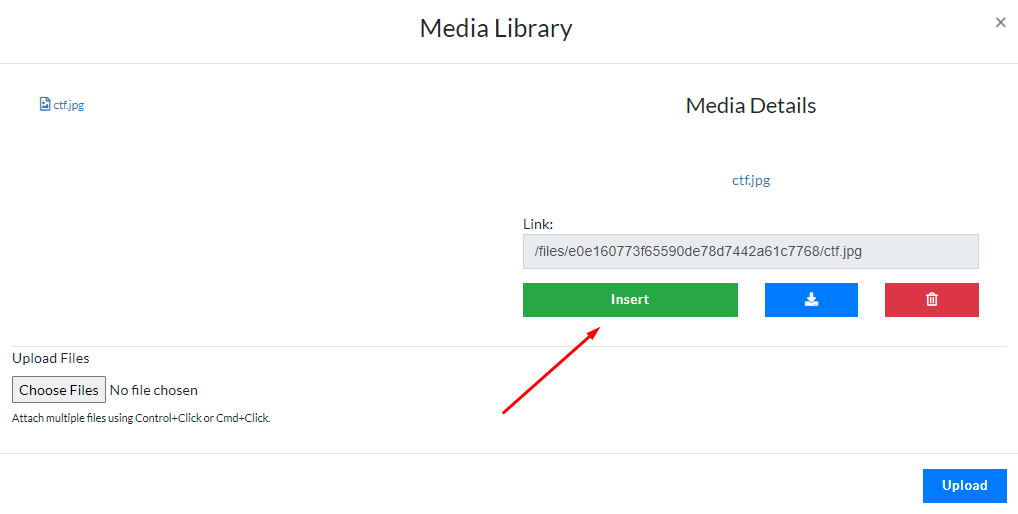
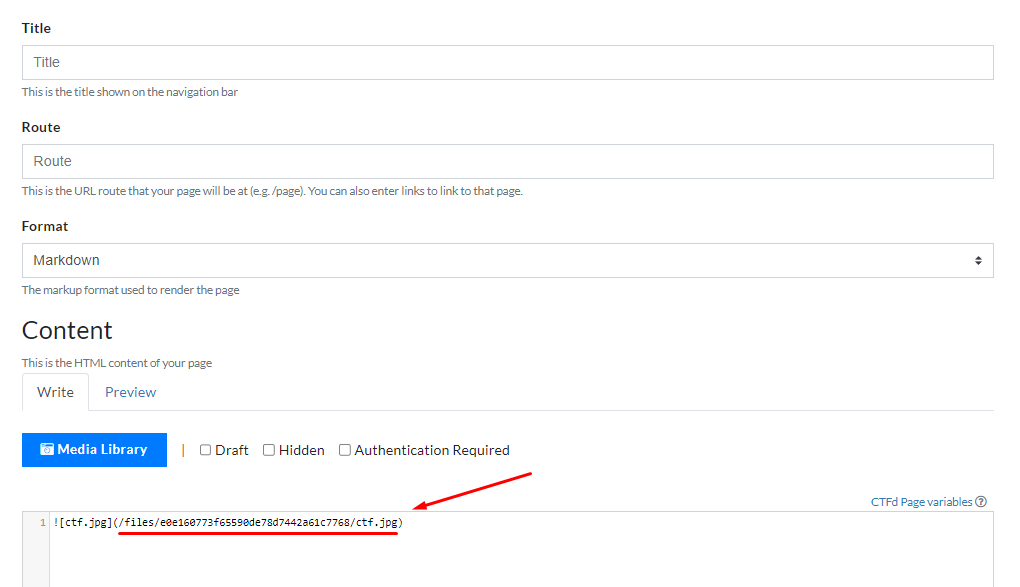
Inserting the URL can be done manually by copy-pasting the URL or by using the Insert button which will automatically insert the URL at the cursor position in the Page Editor as shown below.
The file path is inserted in the Page Editor:
Downloading Uploaded Files
To download an uploaded file, select one from the Uploaded Files section, and click the "download" button.
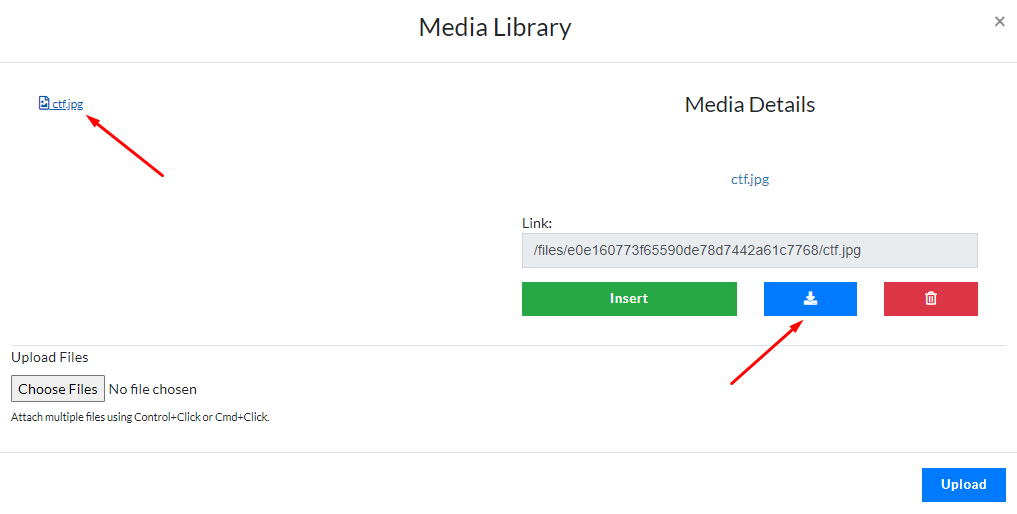
This is equivalent to downloading the file via it's URL.
Deleting Uploaded Files
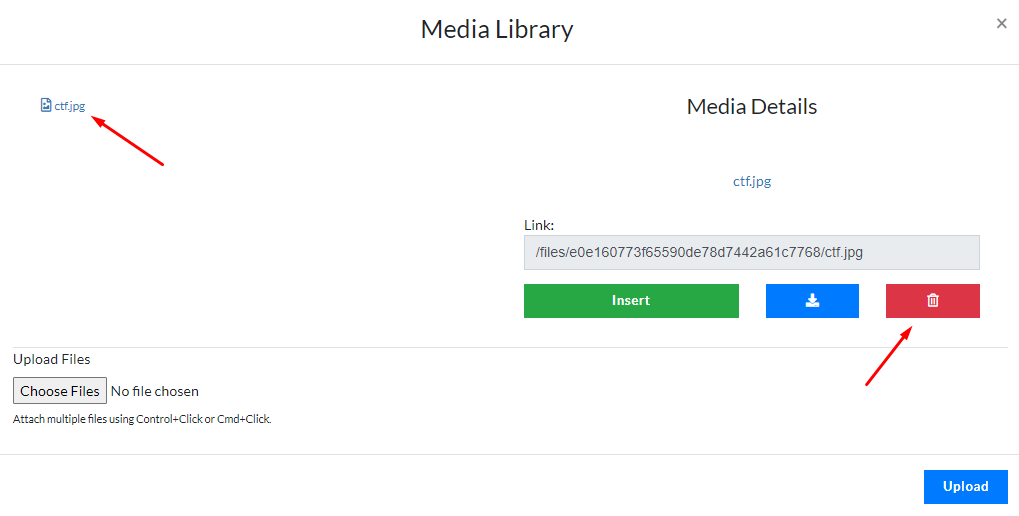
To delete an uploaded file, select one from the Uploaded Files section, and click the "delete" button.
File Security & Access
Files uploaded in the Media Library can be accessed through the full URL of your CTFd site, plus your selected file's path.
https://example.ctfd.io/files/[hash]/[filename]
Files uploaded to the Media Library do not have any form of permission. Anyone who knows the URL to the uploaded file can access it.