Creating Challenges
In order to create a challenge you must be an admin.
Go to the admin panel by clicking on the Admin Panel button on the navigation bar.
Then, select Challenges on the navigation bar.
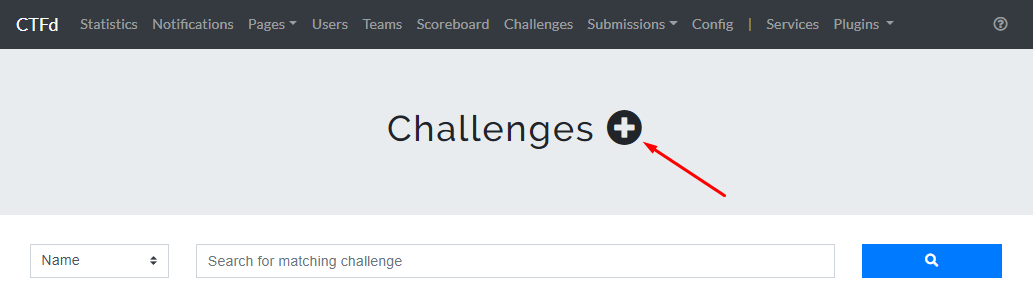
In the Challenges page, create a challenge by clicking on the "plus" button.
Select the Challenge Type and fill out the challenge form with the relevant details: Name, Category, Message, and Value. Click Create.
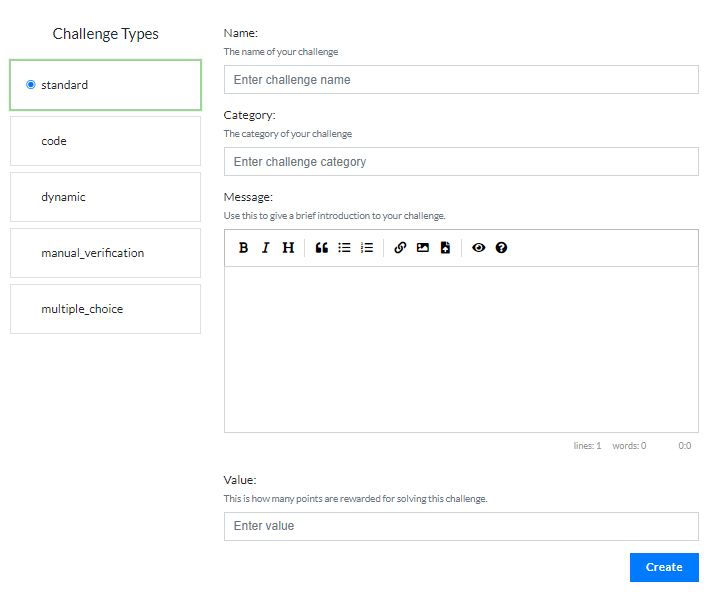
Challenge descriptions support markdown and HTML/CSS code if you need some custom effects in your description, such as highlighting text.
In the pop-up box, you have the option to add a flag, upload files, and set the state of the challenge to visible or invisible. Click Finish to create the challenge.
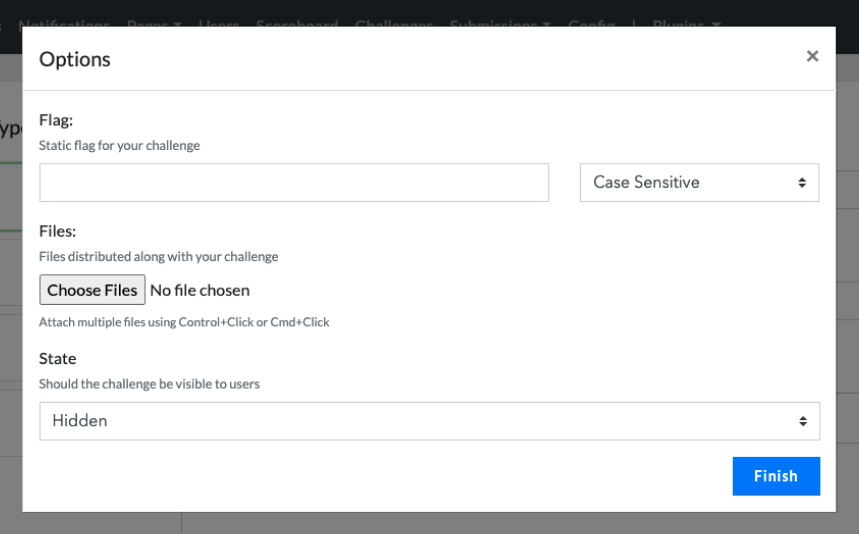
Challenge Options
Once a challenge is created you can still modify the initial set of inputs provided upon creating it. Like, updating the name of the challenge, adding more flags, uploading files etc. Furthermore, you will have access to more options that you can add to the challenge such as Topics, Tags, Hints, Requirements, Next Challenge, Connection Info, and Max Attempts.
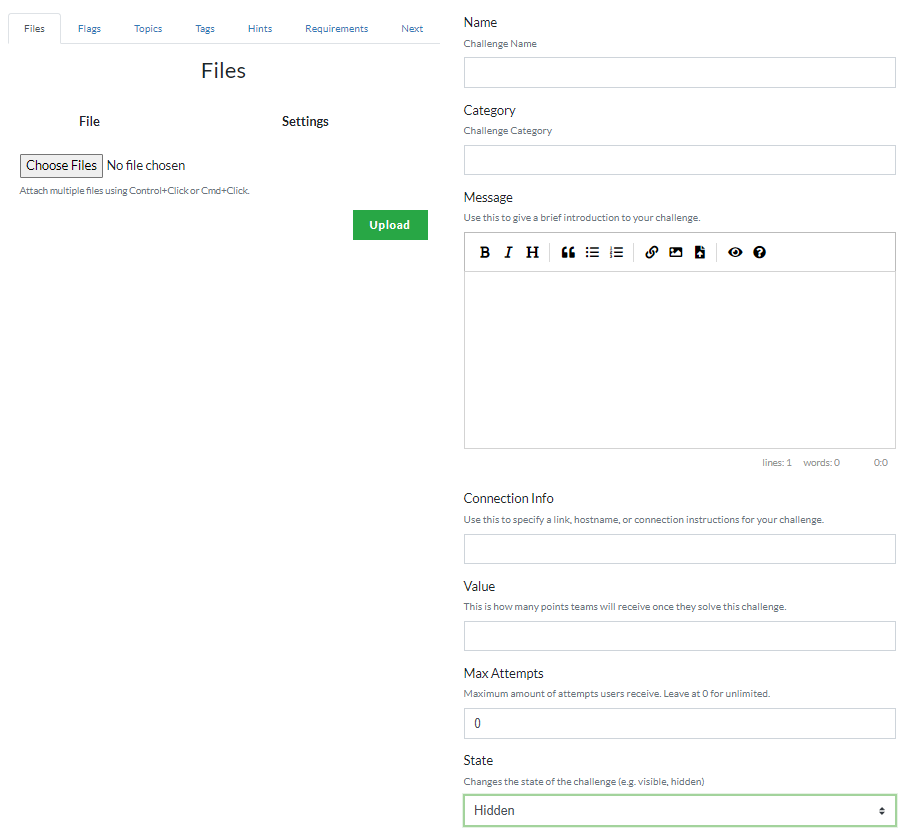
Files
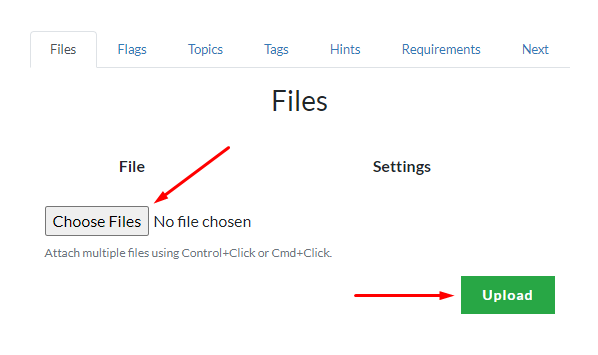
Upload multiple files of any type to the challenge.
Flags
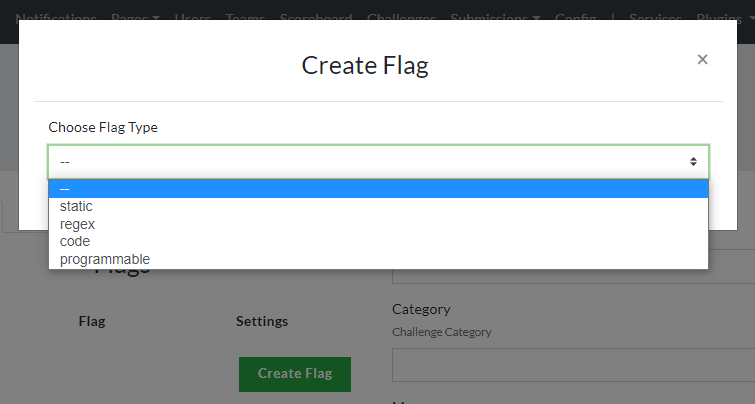
Add multiple flags of 4 different types: Static, Regex, Programmable, and Code flag. For more information about the different types of flags, check out their documentation through the links below.

Topics
You can also add topics to challenges for categoriziation between challenge creators. Topics are only visible to admins. See documentation.

Tags
Add tags to categorize challenges. See documentation.

Hints
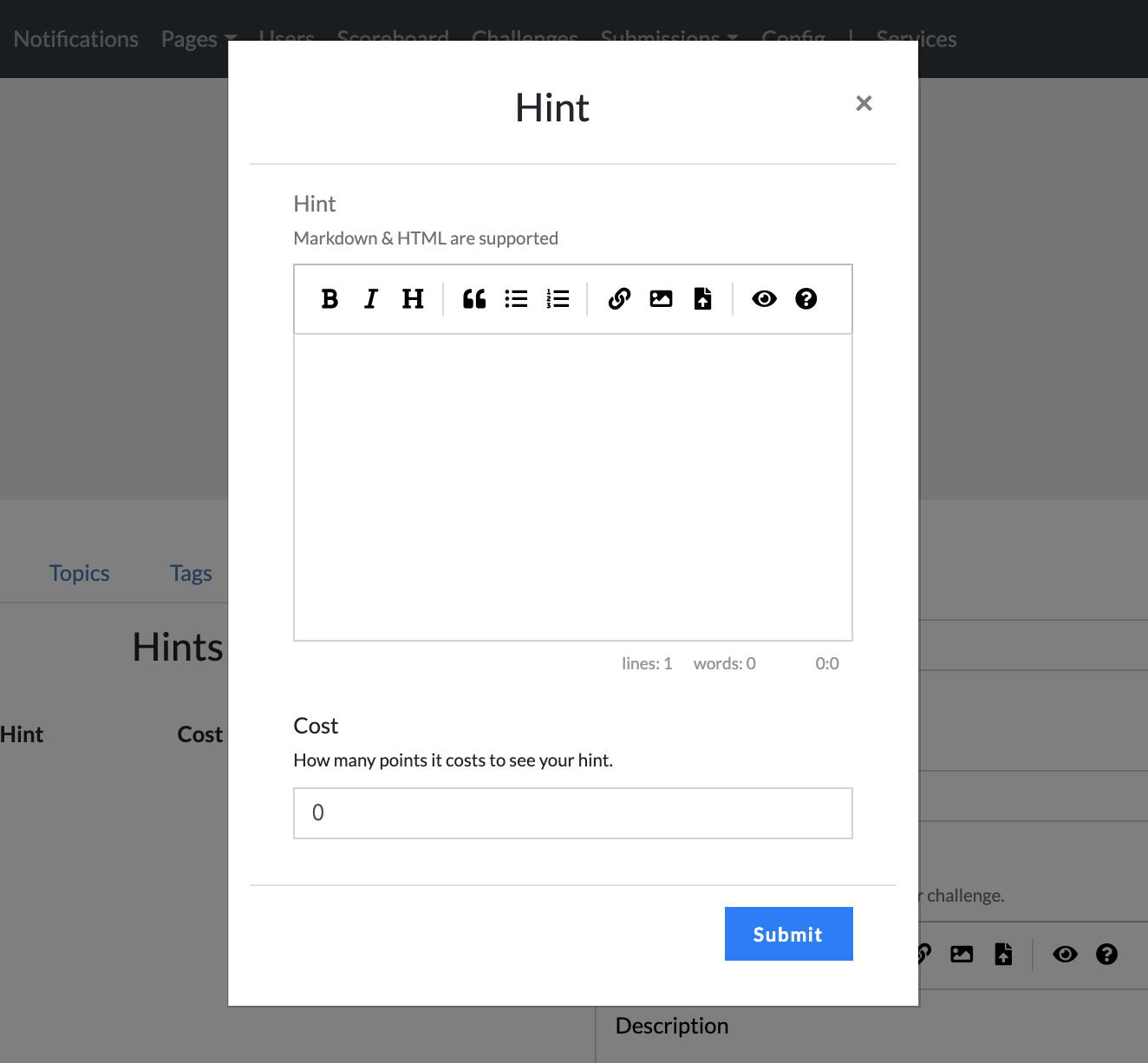
You can also add hints for your challenge under the hints tab.

Requirements
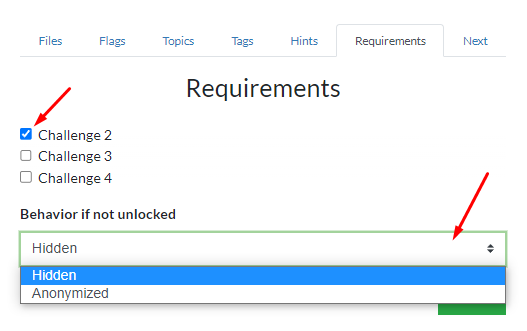
Add challenge requirements. This prevents users from accessing the challenge unless the required challenge/s added has been solved. Select the challenges required and specify the current challenge's behavior to either Hidden or Anonymized. See documentation.
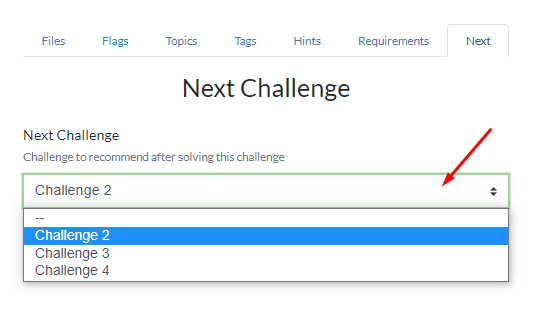
Next Challenge
Specify the next challenge to recommend to the user once the challenge is solved. See documentation
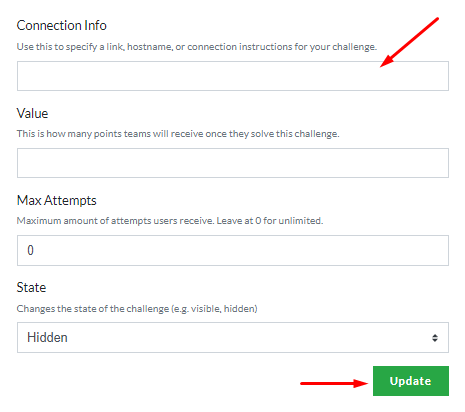
Connection Info
If the challenge is a container-deployed challenge, you can put the link or the hostname in the Connection Info input box to tell participants how to connect to the challenge.
Max Attempts
Set the maximum number of attempts the users can make on the challenge.
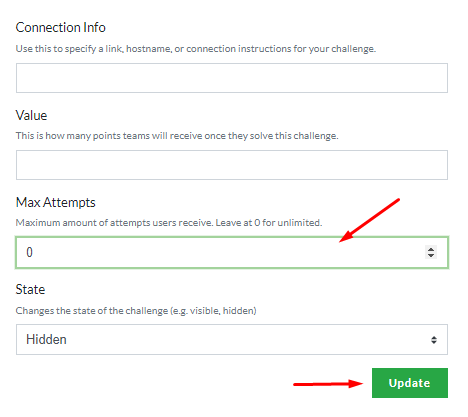
Once you are done with inputting your challenge information, set the challenge state to visible. The challenges won't be visible to users until the start of the competition.